
Naukri auto apply on Mac
JobBot: Auto Apply is a Mac app that applies to Naukri jobs for you. It works in a browser window on your Mac, signed in to your own Naukri account, and it shows you every decision it makes.
What it does on Naukri
- Searches Naukri for the job titles you choose, and only those.
- Reads each listing and skips what does not fit: roles outside the titles you saved, and jobs you have already applied to.
- Skips jobs that send you to a company's own site to apply. It applies only where Naukri takes the application itself.
- Skips junior and intern titles, unless a role you saved asks for them.
- Fills in the questions Naukri asks before it accepts an application.
- Puts your resume on Naukri fresh before a run, if you leave that switched on.
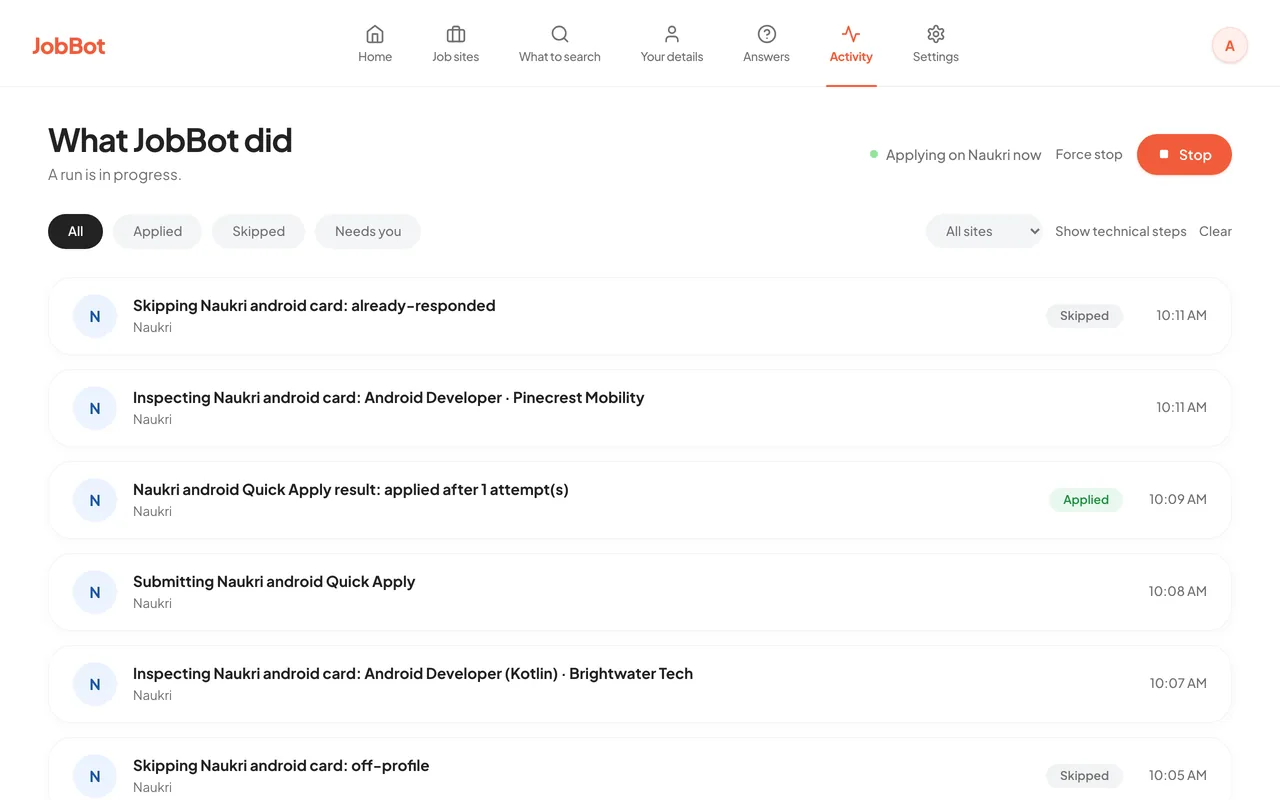
- Writes every apply and every skip, with the reason, to the Activity screen.
Set it up
- Download JobBot, unzip it and drag it to Applications. You need a Mac with Apple silicon on macOS 13 or later.
- Open JobBot and sign in. You start on the free plan, with no card.
- Open Your details and fill in your name, email and phone. A real run does not start without them. Then add what Naukri asks for: pay and notice period, skills and years, location and links. A detail you leave empty gives no answer, so a job that asks for it is skipped.
- In Your details, list the cities you want to look in. Add Remote if you want remote jobs. Leave the list empty to look anywhere.
- Open Job sites and choose Sign in next to Naukri. A browser window opens. Sign in to Naukri there yourself. JobBot never asks for your Naukri password.
- Open What to search. Add the job titles you want, a lowest salary, how recent a listing must be, and the most applications per role. Choose your resume file.
- On Home, choose "Preview without applying". Read the Activity screen to see what it would have done and why. Previews are not limited.
- When the preview looks right, start a real run. Stay near your Mac for the first few.
How it handles screening questions
Naukri asks questions before it takes an application: notice period, pay, years with a skill, and more. JobBot answers each one in this order.
- Your saved answer. If you saved an answer to that question on the Answers screen, JobBot uses it. This always comes first.
- Your details. If the question is about something you filled in on Your details, such as notice period, pay, years with a skill, location or a common yes or no, JobBot answers from it. Nothing is built in. If that detail is empty, JobBot does not guess and does not ask the AI. The question waits for you on the Answers screen and the job is skipped.
- AI, if you switched it on. AI answers from your resume and your details, and is told to say it does not know when they do not cover the question. An AI answer is listed under "Answered by AI, please check" so you can keep or correct it. With Ollama the question stays on your Mac. With OpenRouter it is sent to OpenRouter with your resume text and details; the privacy policy says exactly what.
- Otherwise it skips the job. With no answer it trusts, JobBot drops that job and lists the question on the Answers screen for you. The next run uses what you save.
Some questions are always left for you, such as consent and opinion questions. Jobs that ask for a PAN number are skipped. For help with the questions themselves, read how to answer Naukri screening questions.
Limits and risks
- It is an alpha. Screens and behaviour change between builds, and some applications will not finish.
- Software roles have had the most use. JobBot searches for the job titles you save, for any kind of role. Matching has had the most use on software roles so far.
- The free plan sends 5 applications a day. That is across all job sites, counted on your Mac and reset at midnight, your local time. Preview runs are not limited. Pro has no daily limit from us, and your own caps still apply.
- Empty details mean skipped jobs. A job that asks for something you have not filled in is skipped, and the question waits for you.
- Security checks stop it. JobBot does not try to solve a CAPTCHA. It skips that job or rests the job site.
- Your account is at risk. Most job boards discourage or prohibit automated applying, and an account can be restricted for unusual activity. The risk is real and it is yours to weigh. Start with small caps.
- Your Mac must stay on. JobBot runs on your Mac, so it stops when the Mac sleeps.
Nothing here promises interviews or offers. JobBot saves you the typing. The rest of the job hunt is still yours.
Common questions
Is Naukri auto apply with JobBot free?
There is a free plan and a paid one. The free plan lets you submit 5 applications a day across all job sites, Naukri included. Preview runs are not limited. When you use up the day's 5, JobBot offers a 15-day Pro trial with no card, once per account and once per Mac. Pro has no daily limit from us.
Whose details does JobBot use to answer Naukri's questions?
Only yours. You fill them in on the Your details screen, and nothing is built in. If a detail is empty, JobBot gives no answer and skips the job that asks for it.
Is it a Chrome extension for Naukri?
No. It is a Mac app, and there is no browser extension to install. It opens Chrome, Edge, Brave or Chromium, whichever is already on your Mac, in its own window.
Will Naukri block my account?
They can. Most job boards discourage or prohibit automated applying, and an account can be restricted for unusual activity. JobBot is paced like a person, and you can cap how many applications each job title sends, but nobody can promise your account is safe. The risk is yours to weigh. Start with small caps.
Does it work on Windows?
No. JobBot runs on Macs with Apple silicon, on macOS 13 or later. There is no Windows or Linux build, and no build for Intel Macs.
Read next
- LinkedIn Easy Apply bot for MacThe same app on LinkedIn, and what LinkedIn's limits mean
- How to answer Naukri screening questionsNotice period, CTC, years of experience and saved answers
- What's newRelease notes, download and how each job board is doing
- JobBot: Auto ApplyWhat it does, pricing and common questions